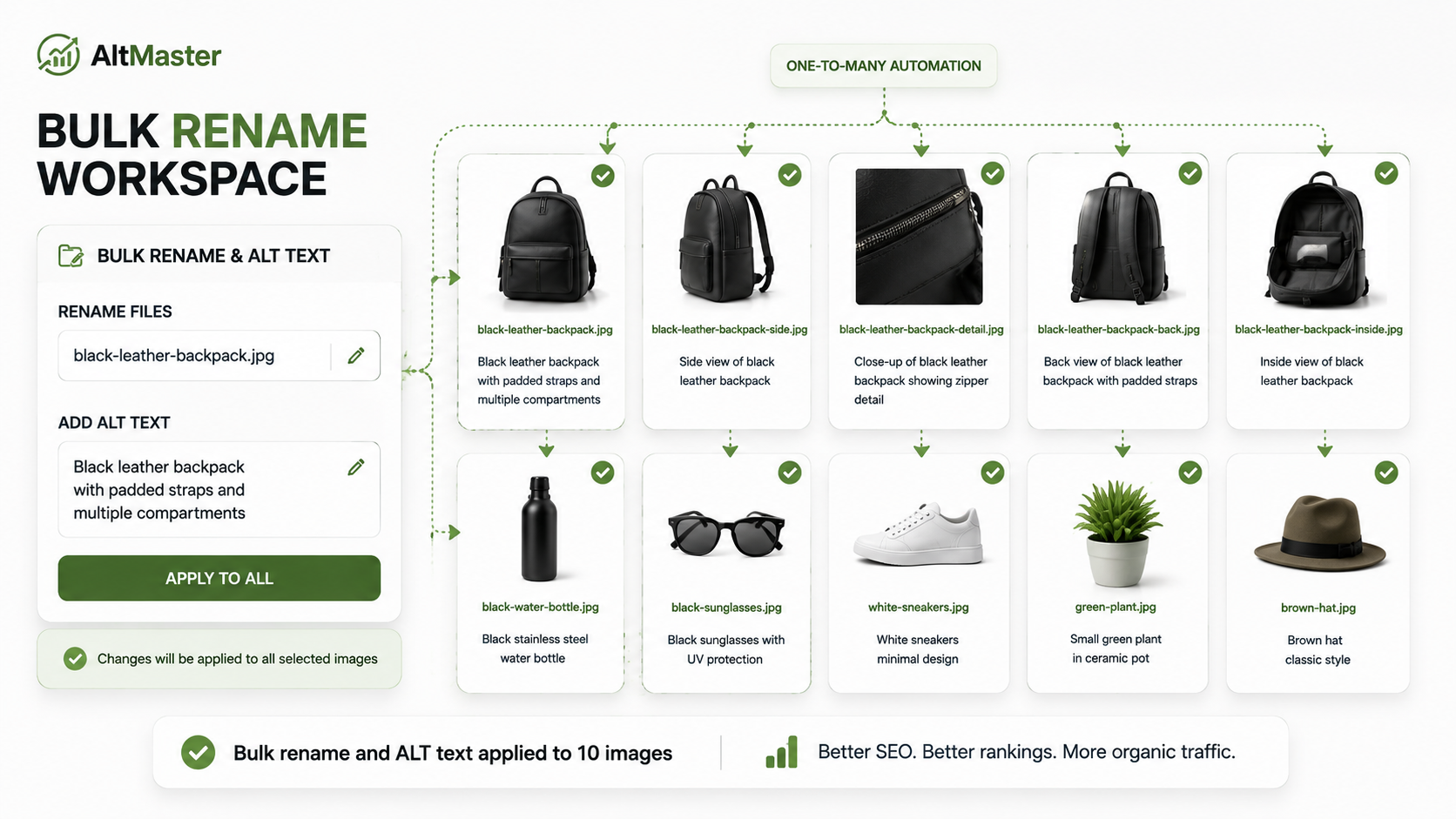
If you've ever tried to do a Shopify product image rename after uploading your photos, you've probably hit the same wall most store owners hit: Shopify won't let you. The filename is locked the moment the image is uploaded, and there's no native way to change it after the fact.
That's the part Shopify doesn't make obvious. And it has real consequences for your image SEO, because Google uses filenames as one of the signals it reads when deciding how to rank your product images in search.
This guide covers what's actually possible, what's free, and what requires a tool when you need to bulk edit images on Shopify at scale.
Why Image Filenames Matter More Than Most Shopify Stores Realize
Every image you upload to Shopify has a URL that's based on the filename at the time of upload. Google reads that URL when it crawls your product pages, and a filename like navy-slim-fit-linen-shirt-front.jpg tells Google something specific and useful. A filename like IMG_4821.jpg tells it nothing at all.
As Google's image SEO guidelines confirm, descriptive filenames are one of the signals used to understand and rank images, which means every generic camera filename in your catalog is a wasted signal on a page that's already competing for visibility. The stores that consistently rank in Google Images are almost always the ones that got this right before uploading, and why Shopify product images become invisible to Google even when stores think the problem is handled explains exactly how this gap shows up in your indexing data.
The Truth About Renaming Images on Shopify (What the Platform Won't Tell You)
Why Shopify Does Not Let You Rename Already-Uploaded Images
This is the part that catches most store owners off guard when they start looking into Shopify product image rename options. Once an image is uploaded, the filename and its URL are permanently fixed. Shopify does not provide any native way to rename already-uploaded images, free or otherwise.
The only way to change a filename after upload is to delete the image entirely and re-upload it with a corrected filename. For a store with 200 products and 4 images each, that's 800 individual delete-and-re-upload operations. Not realistic.
The Only Free Workaround and Its Limits
The free workaround exists, but it only works before upload. Rename your image files on your computer using your operating system's built-in tools, then upload them with the correct filenames from the start. Shopify assigns the URL at the point of upload and uses the filename you provide, so if you get the naming right before the file is uploaded, no app or paid tool is needed for the filename itself.
The limit is obvious: this only helps going forward. If your store has been running for months with generic filenames already uploaded, the free route doesn't fix what's already there.
Free Methods to Bulk Rename Shopify Product Images Before Upload
How to Rename Image Files on Mac and Windows for Free
On Mac: Select all the images you want to rename in Finder, right-click and choose "Rename." You can add a prefix, replace text across all filenames at once, or use a sequential format. For a batch of product images going into the same product, add the product name as a prefix across all files in one step, then adjust the suffix per image manually for view-specific descriptions.
On Windows: Windows 11 includes a built-in PowerRename tool through PowerToys, which Microsoft offers as a free download. It lets you find and replace text across multiple filenames, apply prefixes and suffixes, and preview changes before applying them. For anyone doing regular Shopify product image renaming before uploading new products, PowerToys PowerRename is the most capable free option on Windows.
Both approaches let you bulk edit images on Shopify before they go live, which is the most important part of the workflow to get right.
The Right Naming Formula for Shopify SEO
The formula that works consistently: [product-name]-[color-or-material]-[view].jpg
- slim-fit-linen-shirt-navy-blue-front.jpg - correct
- ceramic-coffee-mug-speckled-glaze-12oz-top.jpg - correct
- IMG_4821.jpg - no SEO value
- shirt-1.jpg - too generic
Use hyphens between words, not underscores. Google treats hyphens as word separators and underscores as word joiners, so navy-blue-shirt.jpg gives you three keyword signals while navy_blue_shirt.jpg gives you one combined string. Keep filenames lowercase, avoid special characters, and include the specific variant color for any image that shows a particular color option. For the full formula with templates covering every image type, the AltMaster guide to writing SEO-optimized ALT text for Shopify product images covers both ALT text and naming structure together.
How to Bulk Edit Image Filenames and ALT Text on Shopify After Upload
Here's where the free path runs out for most stores. If your images are already uploaded with generic filenames, there is no free way to rename them without re-uploading. But for the ALT text side of image SEO, which often carries more direct ranking weight than the filename itself, there is a practical path that doesn't require touching any image files.
Unlike filenames, ALT text can be fully edited after upload. And for the filename problem itself, AltMaster now handles both sides of this in one place, which is what makes it worth understanding in detail.
How AltMaster handles bulk ALT text: It scans your entire Shopify catalog, surfaces every product image with missing or low-quality ALT text, and gives you two ways to fix it. The AI mode actually reads each image's pixels to write a description of what's in the photo, meaning image four of a product gets a different description from image one rather than the same title repeated.
The template mode uses token variables including product_title, variant_option1, product_type, product_vendor, and product_image_position to generate structured descriptions instantly across your full catalog. You choose the tone (Descriptive, Marketing, Technical, or Minimal), the character length, and the language, then preview five real examples from your own products before anything is saved to your store. Every run is logged with before-and-after text per image, and you can undo any single image or an entire run at any point.
How AltMaster handles bulk image filename renaming: This is the feature that solves the problem the free methods can't. Rather than requiring you to delete and re-upload images, AltMaster renames the actual image files in Shopify directly using the same token system. As shown in the filename template screen, you pick a naming pattern from presets including "Title and position" ([product_title]-[product_image_position]), "Title and brand" ([product_title]-[product_vendor]-[product_image_position]), "Title and variant" ([product_title]-[variant_option1]-[product_image_position]), or write your own custom pattern. The output is automatically formatted as a web-safe URL slug, so "Café Linen Shirt" becomes cafe-linen-shirt without any manual cleanup.
Before applying changes, AltMaster shows you a preview of exactly what each filename will become. As shown in the preview screen, you can see the current filename alongside the proposed new filename for every image in scope before committing to anything. An Orange Jacket with a long generated filename like outdoor-lifestyle-streetwear_8b6ad288… becomes orange-jacket-1.png. A White Hoodie with a similarly bloated name becomes white-hoodie-1.png. That before-and-after view is the key difference from tools that rename silently without showing you the consequences first.
One important caveat AltMaster is transparent about: renaming an image changes its URL permanently, and Shopify does not redirect the old URL automatically. Any place the old URL was hard-coded, such as a theme customisation, an email template, or a product feed, will break and need to be updated manually. AltMaster separates images that are safe to rename (camera defaults, UUID strings, and hex-named files with no useful words) from those where renaming carries more risk, and shows you the count of each before you run anything. This is the right way to handle it, and it's a genuine difference from tools that rename everything without warning.
For stores that need to Shopify bulk edit image alt text across their existing catalog without re-uploading a single file, the complete guide to bulk generating ALT text for your entire Shopify store covers the full process in detail including how the template token system works in practice.
Free vs. App: Which Approach Is Right for Your Store Size
Under 50 products: The free approach is workable for new uploads. Rename files before uploading using Mac Finder or Windows PowerRename. Fix ALT text manually through your Shopify admin for existing products one image at a time. A Shopify product image rename-free workflow is realistic at this scale if you're disciplined about doing it before every upload.
50 to 200 products: The free filename approach still works for new uploads, but fixing existing filenames means re-uploading everything, which becomes a significant time investment. For Shopify bulk edit image alt text across this range, manual admin editing isn't practical and the CSV method introduces formatting risk. AltMaster covers both ALT text and filename renaming across this range in one session.
Over 200 products: The free path isn't practical for existing image cleanup at this scale. For the filename side, AltMaster's bulk renaming handles the full catalog using pattern-based templates with a preview step before anything changes. For ALT text, both the AI and template modes cover thousands of images in one run with automatic coverage for new products going forward.
The practical dividing line is straightforward: if you're just starting out, build your naming conventions before uploading for free. If your catalog is already live with generic filenames and missing ALT text, use a tool that handles both problems in the same workflow rather than spending days on manual fixes that don't scale.
Conclusion
The Shopify product image rename free options are real, but they only work before upload. Once images are in your store, filenames are locked and the only practical path to fixing them at scale is a tool that can rename already-uploaded files directly. ALT text is the more immediately fixable half of the equation: fully editable after upload, significant for both image search rankings and accessibility, and now fixable across an entire catalog using AI that reads the actual image rather than just rearranging your product title.
Get your naming conventions right before your next product shoot. Fix your ALT text and filenames across what's already uploaded using the right tool for the job. Build both habits into your ongoing workflow so new products never go live as a blank or generic signal.
FAQs
Is there a free way to rename Shopify product images after they've been uploaded?
No native free option exists. Shopify locks the filename and URL at the point of upload. The only free path to changing a filename is deleting the image and re-uploading it with the correct name. For stores with a small number of affected images this is manageable. For larger catalogs, AltMaster's bulk filename renaming handles the full catalog directly without re-uploading anything.
Can I bulk edit images on Shopify without using an app?
For ALT text, yes, using the CSV export method from your Shopify admin. For filenames, no, not without re-uploading each image individually. The CSV approach for ALT text works for stores with fewer than 100 products but becomes error-prone at a larger scale.
What is the fastest way to do Shopify bulk edit image alt text across a large catalog?
For anything over 100 products, AltMaster's bulk ALT text generator handles the full catalog in one session using either AI that reads each image directly or a template system built from your product data variables, with a preview step before anything is written to your store and full undo history afterward.
Is a filename and ALT text the same thing?
They're related but they serve different purposes. A filename is the name of the image file itself, for example navy-linen-shirt-front.jpg, and it's what Google reads from the image URL when it crawls your product page. ALT text is a written description you add to the image inside Shopify, and it's what Google reads to understand what the image is actually showing. Both contribute to image SEO but they work at different layers. The filename has to be set correctly before upload because Shopify locks it permanently once the image is live, or fixed afterward using a tool like AltMaster that renames files directly. ALT text can be added or edited at any time after upload, which is why fixing ALT text across an existing catalog is always the more immediately practical starting point.