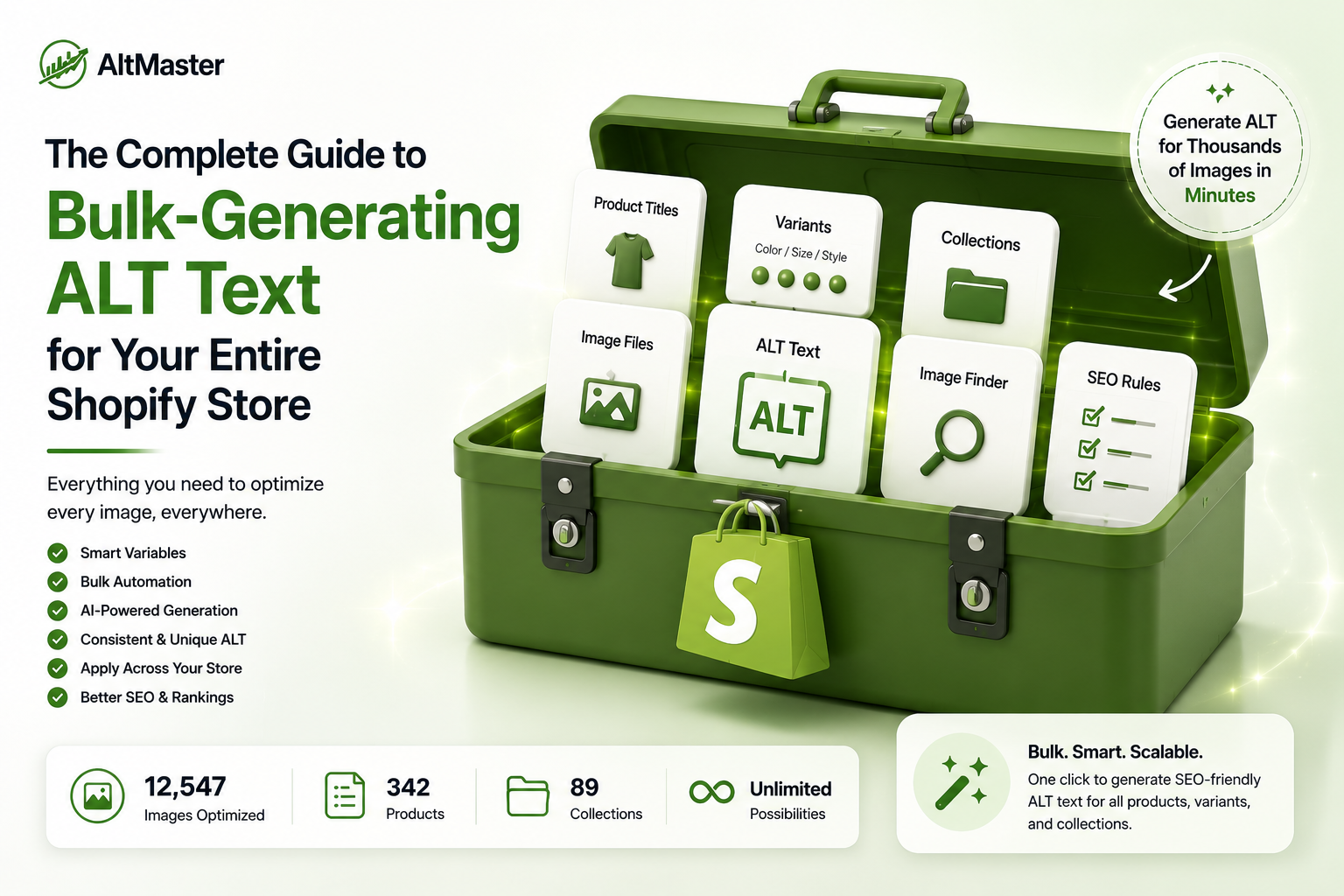
There's a point in every Shopify store owner's SEO journey where they open their product catalog, do the math on how many images need ALT text, and quietly close the tab.
200 products. 5 images each. 1,000 individual fields to fill in. At 30 seconds per image, that's over eight hours of clicking through your admin - before you account for variant images, collection pages, or the new products you'll add next month.
Manual ALT text doesn't scale. It never did. The question is what to do instead - and more importantly, how to do it in a way that actually helps your SEO rather than just filling in fields with the same generic description repeated a thousand times.
Why Writing ALT Text One by One Is Killing Your SEO Progress
The problem isn't just time. It's that manual ALT text at scale that almost always degrades in quality the longer you do it. The first ten products get thoughtful, specific descriptions. By product fifty, you're copy-pasting the product title and moving on. By product two hundred, half the variant images have been skipped entirely.
The result is a catalog where some images have strong ALT text, most have weak ALT text, and a significant chunk have none at all. That inconsistency is exactly why Shopify product images become invisible to Google even when store owners think the problem is handled - the coverage looks partial in Search Console, image search visibility is unpredictable, and new products go live every week without any ALT text at all because there's no system to catch them.
Bulk generation fixes the coverage problem. The right approach to bulk generation fixes the quality problem at the same time.
What Bulk ALT Text Generation Actually Means
Manual vs. Template-Based vs. AI Generation
There are three ways to approach ALT text at scale, and they produce very different results:
Manual: You write each ALT text individually. High quality when done well, but it doesn't scale past a few dozen products without quality degrading. No practical option for catalogs of 100+ products.
Pure AI generation: You feed product images or data into an AI tool, and it writes descriptions automatically. Fast, but the output is often generic - "a product image of a blue shirt" - and identical across similar products. Google recognizes patterns of low-specificity ALT text across a catalog and treats it as thin content. How to write ALT text for your Shopify store using AI covers where AI generation works well and where it consistently falls short - the short version is that unconstrained AI produces descriptions that are technically present but practically useless.
Template-based generation: You define a structured template using product data variables - product title, variant color, material, product type - and the system generates a unique, specific ALT text for every image by filling in the variables from your actual product data. The output reads naturally because it's built from real product information, and it's unique per product and per variant because the variables differ across your catalog.
Why Template-Based Generation Wins for Shopify Stores
Template-based generation threads the needle between speed and quality. It's fast because it runs automatically across your entire catalog. It's specific because it pulls from your actual product data rather than generating descriptions from scratch. And it's consistent because the same template structure applies everywhere, with the variables doing the work of differentiation.
The output for a blue linen shirt looks like a Slim-fit linen shirt in navy blue – front view. The output for a sage green version of the same shirt looks like a Slim-fit linen shirt in sage green – front view. Different ALT text, same template, zero manual work per image. That's what scale looks like without sacrificing quality.
How to Build the Perfect ALT Text Template for Your Store
The Variables That Matter: Product Title, Variant, Type & More
A good ALT text template uses variables that are already in your Shopify product data - so the generation is automatic and the output is accurate without any additional input per product. The variables worth including:
- {product_title} - the core product identifier. Always included.
- {variant_color} or {variant_option} - critical for any store selling products in multiple colors, materials, or configurations. This is what makes variant images unique from each other.
- {product_type} - useful for category context, especially on stores with diverse catalogs.
- {material} - If you store material data in your product tags or metafields, pulling it into ALT text adds descriptive specificity.
- {view} - front view, back view, detail shot, lifestyle - useful when you have a consistent image ordering system per product.
Not every variable needs to be in every template. The right combination depends on what's in your product data and what level of specificity makes sense for your catalog.
Template Examples for Different Product Types
Apparel: {product_title} in {variant_color} – {product_type} – front view Output: Slim-fit linen shirt in navy blue – men's shirt – front view
Home goods: {product_title} – {material} – {variant_color} Output: Stoneware dinner plate – ceramic – speckled white
Accessories: {product_title} in {variant_color} – {product_type} – detail view Output: Leather bifold wallet in tan – men's wallet – detail view
Lifestyle images: {product_title} in {variant_color} – styled lifestyle shot Output: Linen duvet set in sage green – styled lifestyle shot
For a deeper breakdown of ALT text formula structures and ready-to-use templates across every image type - hero shots, detail images, lifestyle photography, variant swatches - the AltMaster guide to writing SEO-optimized ALT text for Shopify product images covers every format with examples worth bookmarking before you set your template.
How to Bulk-Generate ALT Text Across Your Entire Shopify Store with AltMaster
This is where the template work above turns into actual coverage across your catalog. Here's exactly how AltMaster handles it:
Step 1: Connect AltMaster to your Shopify store. Install AltMaster from the Shopify App Store and connect it to your store. The app reads your full product catalog - every product, every variant, every image - and maps the available product data fields automatically.
Step 2: Run your ALT text audit. Before generating anything, AltMaster scans your catalog and surfaces a complete picture of your ALT text coverage: how many images have missing ALT text, how many have blank fields, how many have repeated or low-quality descriptions, and which specific products and variants are affected. For most stores, this audit alone is clarifying - the gap is almost always larger than expected.
Step 3: Set up your template. Build your ALT text template using the variable system: {product_title} in {variant_color} – {product_type} or whatever combination fits your catalog. You can set a single template for the whole store or different templates for different product collections - useful if your catalog spans genuinely different product categories that need different description structures.
Step 4: Preview before you run. AltMaster generates a preview of what the ALT text will look like across a sample of your products before applying anything. This is where you catch template issues - if a variable is pulling blank data for some products, or if the output reads awkwardly for a specific product type, you adjust the template before it runs across your full catalog.
Step 5: Run bulk generation. Once the preview looks right, run the bulk generation. AltMaster applies your template across every image in scope - products, variants, collection images - filling in each variable from your actual Shopify product data. A catalog of 500 products with 4 images each takes minutes, not days.
Step 6: Handle exceptions. After the bulk run, AltMaster flags any images where the template output couldn't be completed - usually because a variable like {variant_color} was empty for that product. These get surfaced for manual review, so nothing falls through the cracks. You fix the exceptions, and the rest of the catalog is covered.
Step 7: Set up automatic coverage for new products. The last step is turning on AltMaster's automatic mode, which applies your template to new products as they're added to your store. Every product that goes live from that point forward gets ALT text on its images automatically - no manual step, no weekly catch-up session. The catalog stays covered as it grows.
What to Check After You Run a Bulk ALT Text Update
Bulk generation handles coverage. A quick post-run check makes sure the quality is where it needs to be:
Spot-check your top-traffic products first. Pull your top 20 products by sessions from Google Search Console and review their ALT text manually. These pages have the most to gain and the most to lose, so verifying them first is worth the ten minutes.
Check variant images specifically. Open a few products with color or material variants and click through each variant image to confirm the ALT text changed per variant - not just the hero image. This is the most common gap after a bulk run and the one that matters most for variant-level image search visibility.
Look for any blank variable outputs. If a product was missing a color or material field in Shopify, your template may have generated something like Slim-fit linen shirt in - front view with a blank space. AltMaster flags these in the exceptions report, but a manual scan of a few products confirms the flag caught everything.
Run your store through AltMaster's free ALT text checker tool after the bulk update to get a fresh coverage score. The before-and-after comparison is a useful benchmark and gives you something concrete to track over time.
For a full walkthrough of how ALT text sits inside your broader Shopify SEO setup - and what to work on after your image metadata is clean - the complete guide to adding and managing ALT text in Shopify covers both the manual foundations and where bulk generation fits into the longer-term picture.
Conclusion
Bulk ALT text generation isn't a shortcut - it's the only realistic path to complete, consistent image metadata across a growing Shopify catalog. Manual writing degrades in quality as the catalog grows. Pure AI generation produces output that's technically present but practically weak. Template-based generation using your actual product data hits the middle ground: fast enough to cover thousands of images in one session, specific enough that each image gets a description that actually means something.
Get the template right, run the bulk generation, handle the exceptions, and turn on automatic coverage for new products. That's the full system. Everything after that is maintenance, not cleanup.
FAQs
Will bulk-generated ALT text look spammy to Google?
Not if it's template-based and pulling from real product data. The concern about spammy ALT text comes from two patterns: keyword stuffing ("buy blue shirt cheap men fashion online") and identical descriptions repeated across every image. Template-based generation avoids each output being unique because the variables differ by product and variant, and the structure reads naturally because it's built from actual product information rather than keywords jammed together.
Can I use different ALT text templates for different product collections?
Yes - and for stores with genuinely different product categories, it's the right approach. A template that works for apparel ({product_title} in {variant_color} – front view) doesn't work as well for home goods or accessories. AltMaster lets you set collection-level templates so each category gets a structure that fits what's actually being described.
How often should I re-run bulk ALT text generation on my Shopify store?
If you have automatic coverage turned on for new products, you typically don't need to re-run the full bulk generation. The main reason to re-run is if you update your template - improving the structure, adding a new variable, or adjusting the format based on how the output reads across your catalog. Otherwise, the initial bulk run plus automatic new-product coverage keeps your catalog clean without recurring manual effort.
What happens to ALT text when I add new products after bulk generation?
With AltMaster's automatic mode active, new products get ALT text applied to their images as soon as they're added to your store - using the same template you set up for your catalog. Without automatic mode, new products go live without ALT text and accumulate as a backlog until you run bulk generation again. Turning on automatic coverage after the initial bulk run prevents the catalog from developing the same gap it started with.