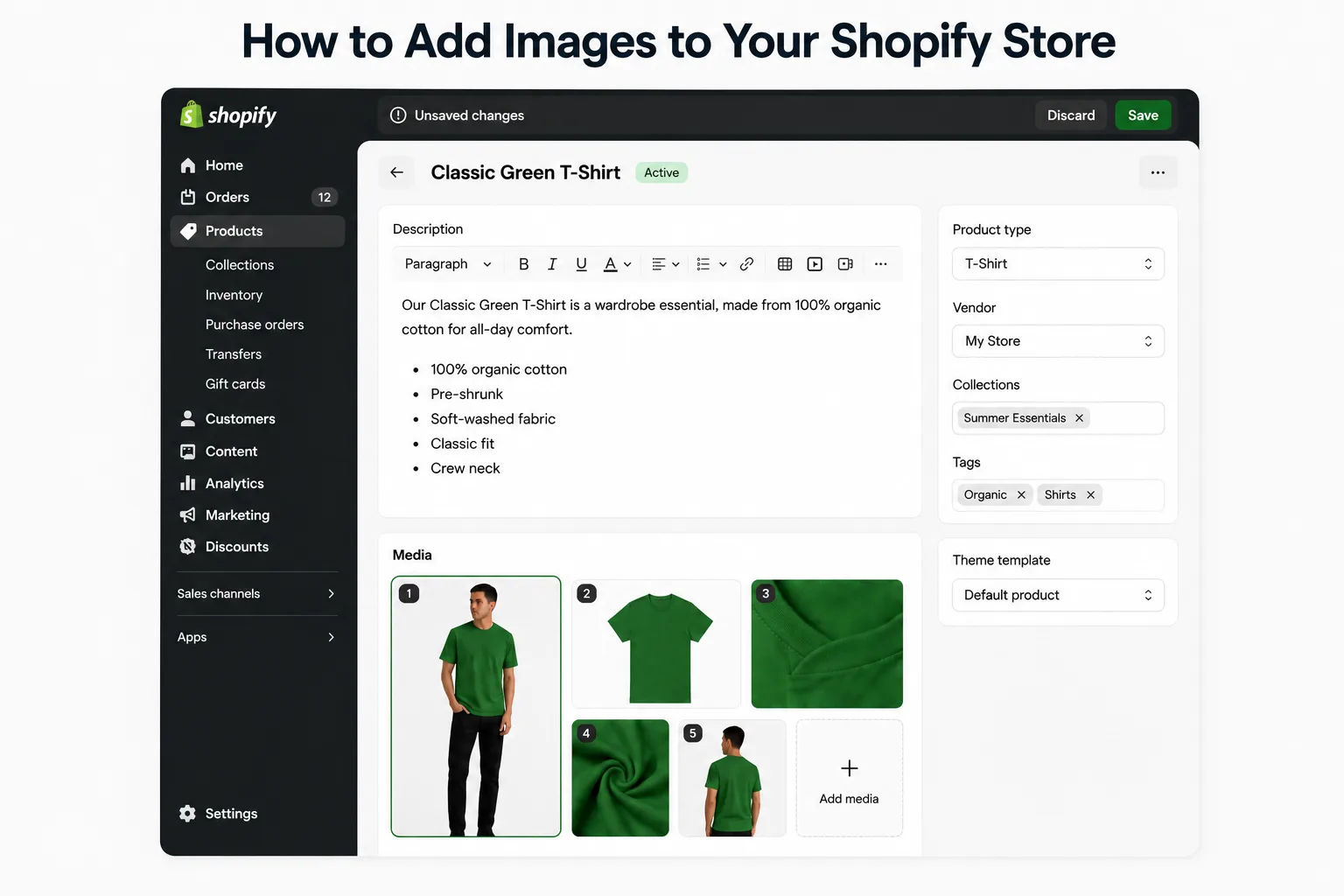
Your product might be exactly what a customer is looking for, but if the image doesn't do it justice, they'll scroll right past it. On a physical store shelf, people pick things up, read the label, and feel the texture. Online, your images do all that work.
So getting this right isn't just about aesthetics. It directly affects whether someone buys or bounces.
Why Adding Quality Images to Your Shopify Store Matters
There's a reason product photography is one of the first things serious store owners invest in. According to data shared by Shogun, 75% of online shoppers say product images influence their purchasing decisions. That's not a small margin, that's nearly everyone who lands on your page.
Poor images signal low effort. And low effort, fairly or not, signals low quality to a buyer who has never interacted with your brand before. On the flip side, clean, clear images build trust before a single word is read.
What makes a good Shopify product image
A good product image doesn't need to be expensive, it needs to be clear, well-lit, and honest. Show the product from multiple angles. Use a clean background, preferably white or neutral, so nothing competes with the item itself. And keep your image sizes consistent across your store, mismatched dimensions make even a well-designed store look patchy.
Shopify recommends a resolution of 2048 x 2048 pixels for product images to ensure they look sharp on zoom. Supported formats are JPG, PNG, GIF, and WebP.
How to Add Images to Your Shopify Store (Step-by-Step)
Adding images in Shopify is straightforward once you know where to look. Here's how to do it:
-
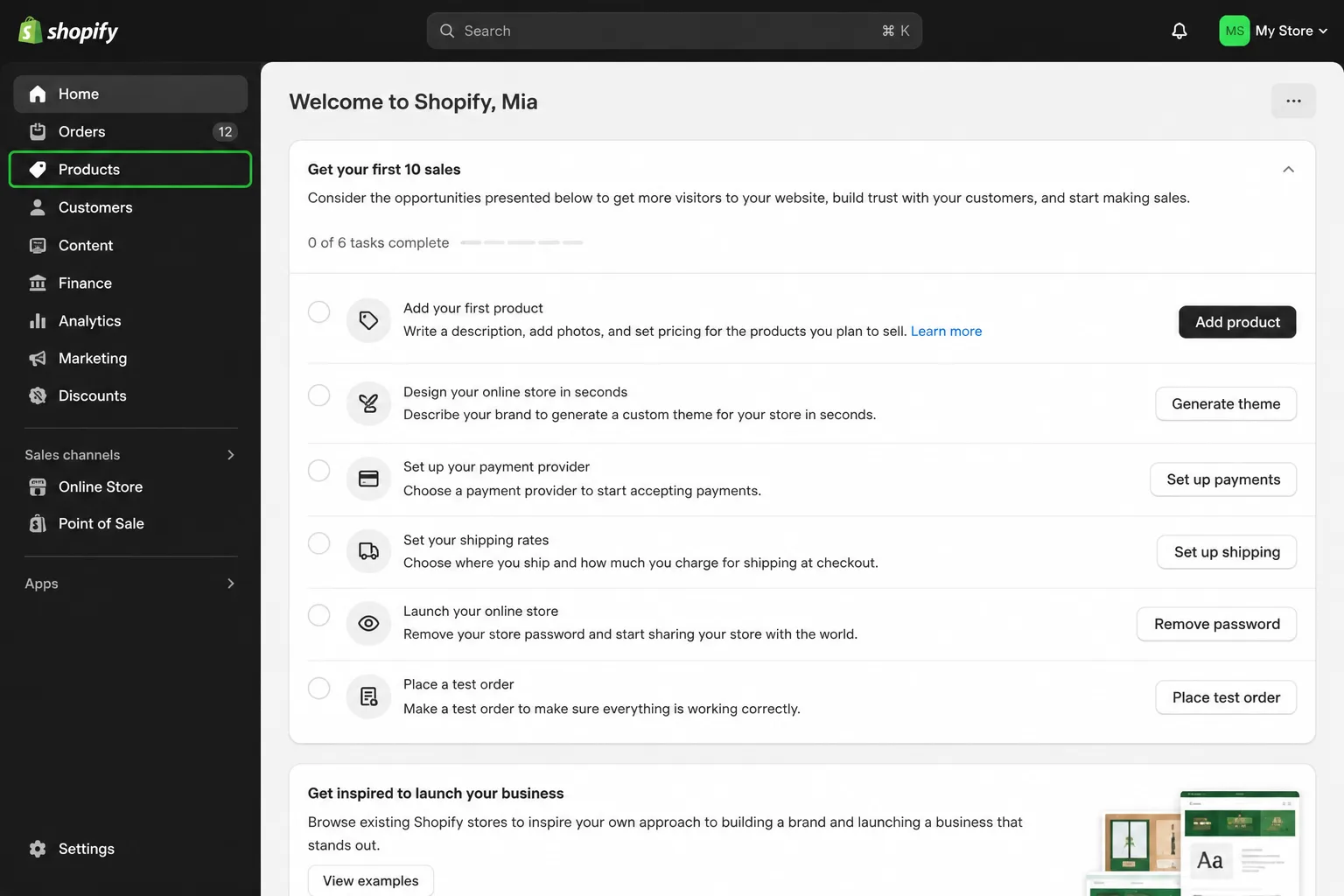
Log in to your Shopify Admin and go to Products
in the left-hand menu.
-
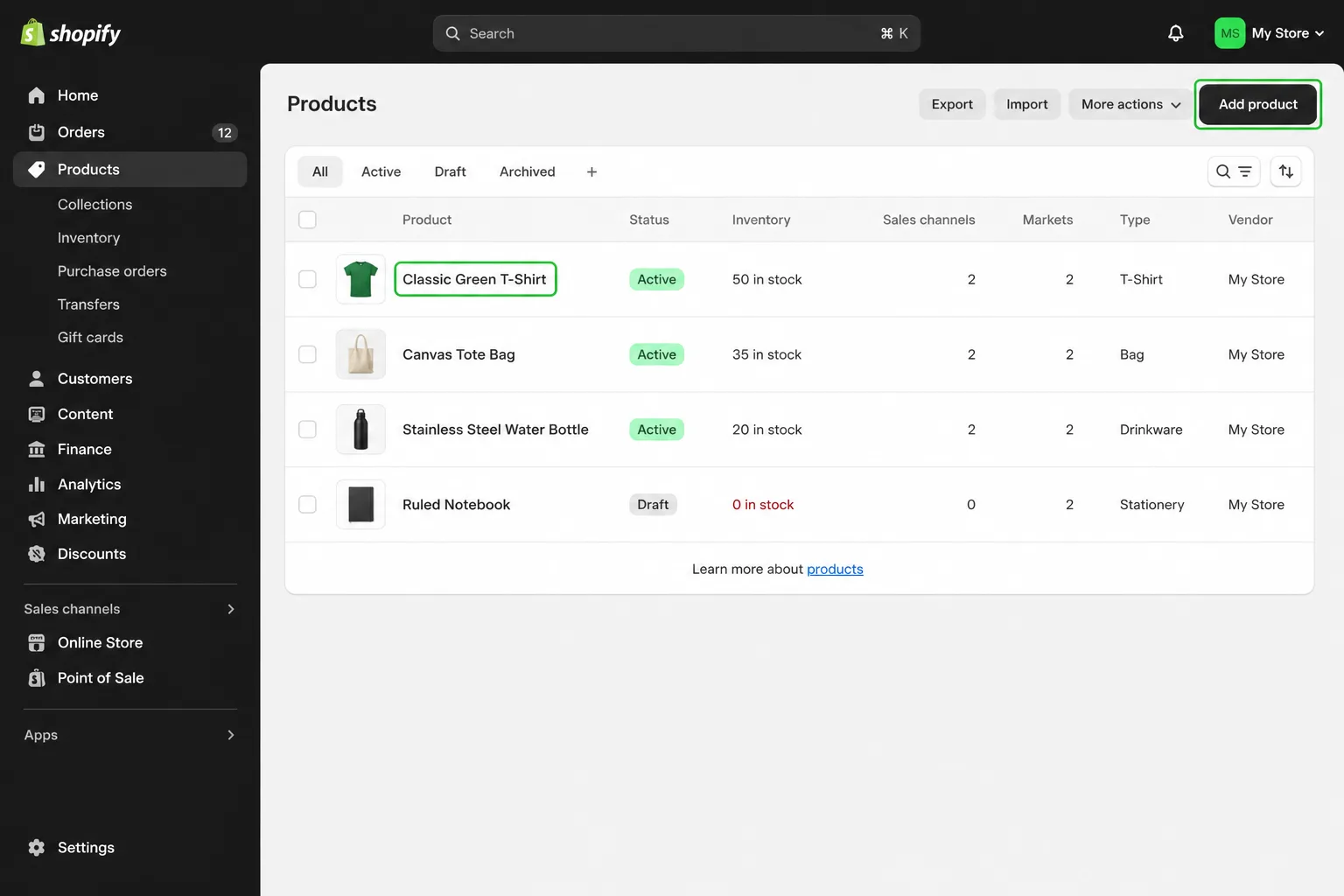
Click on the product you want to edit, or hit
Add product if it's a new one.
-
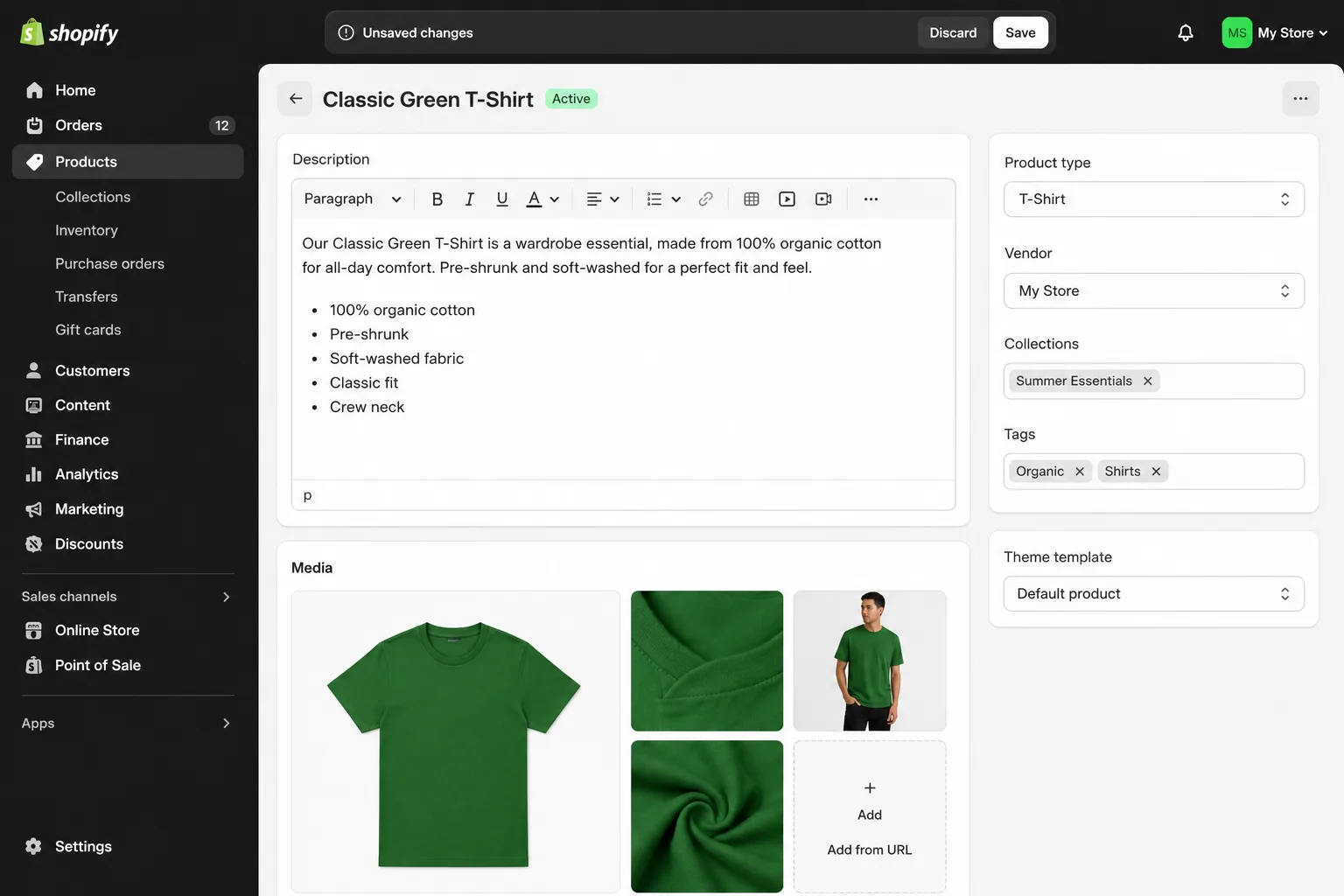
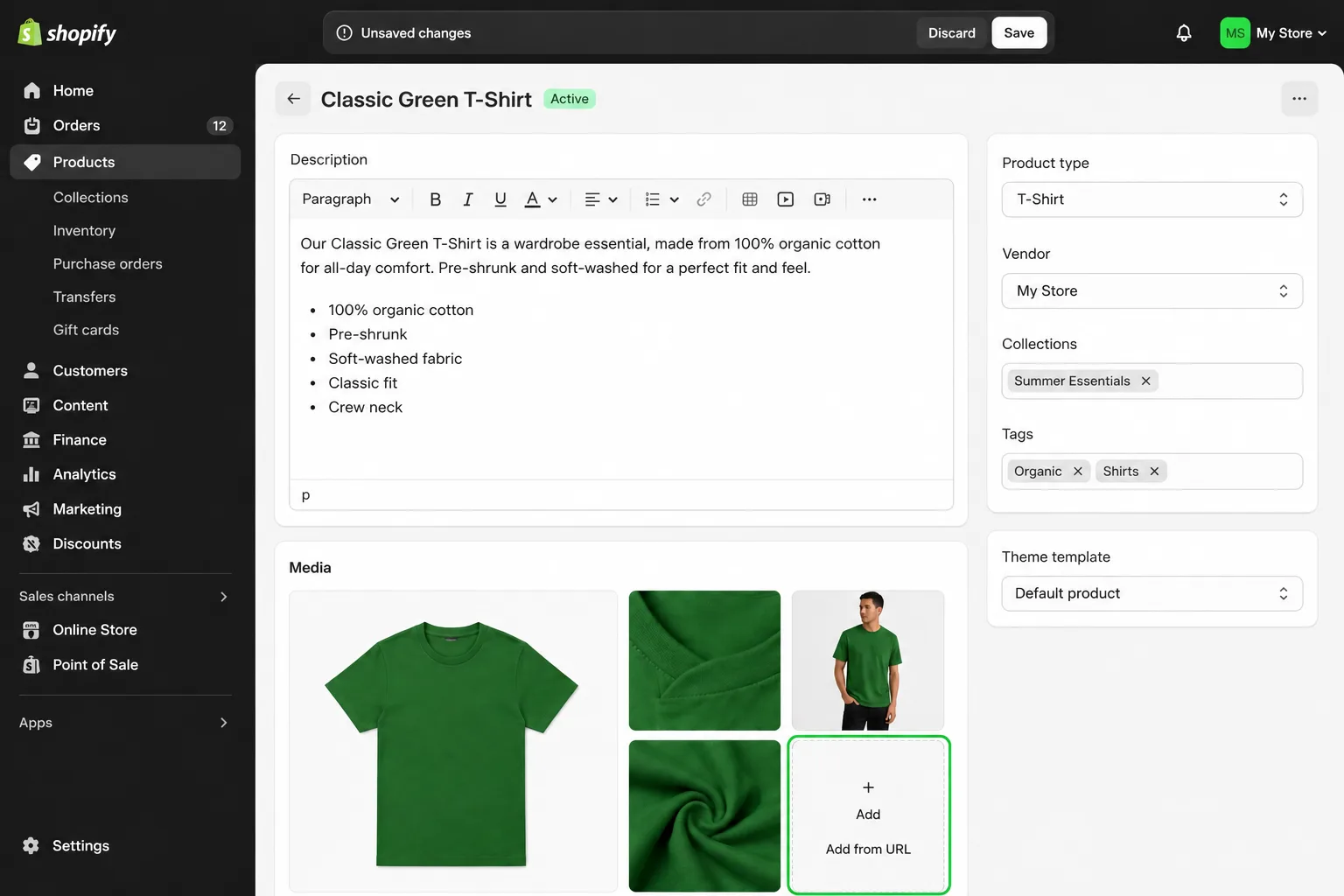
Scroll down to the Media section on the product
page.
-
Click Add media, you can either browse your
device or drag and drop images directly into the uploader.
-
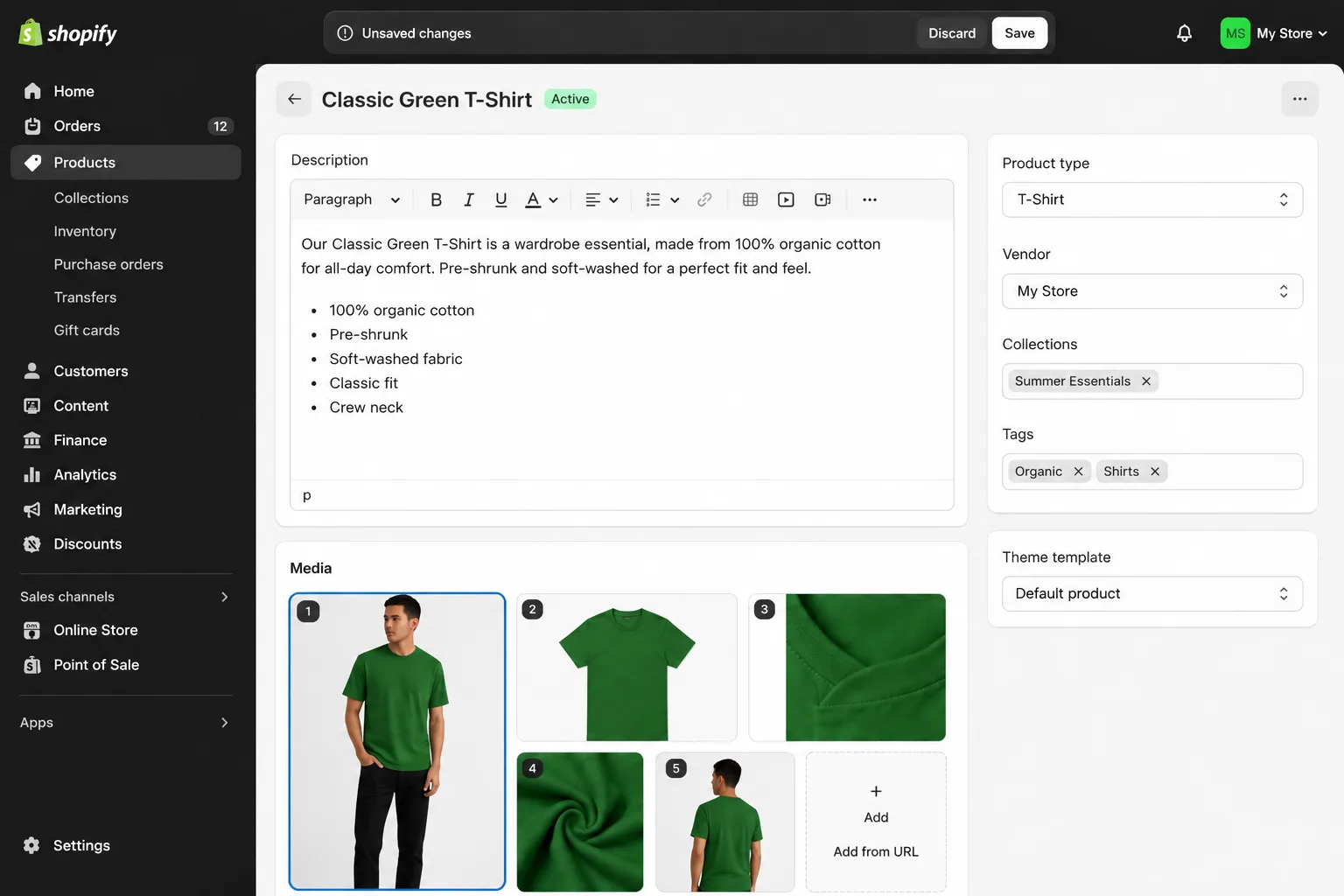
Once uploaded, drag the images to reorder them. The first image
becomes your main product photo shown in listings.
-
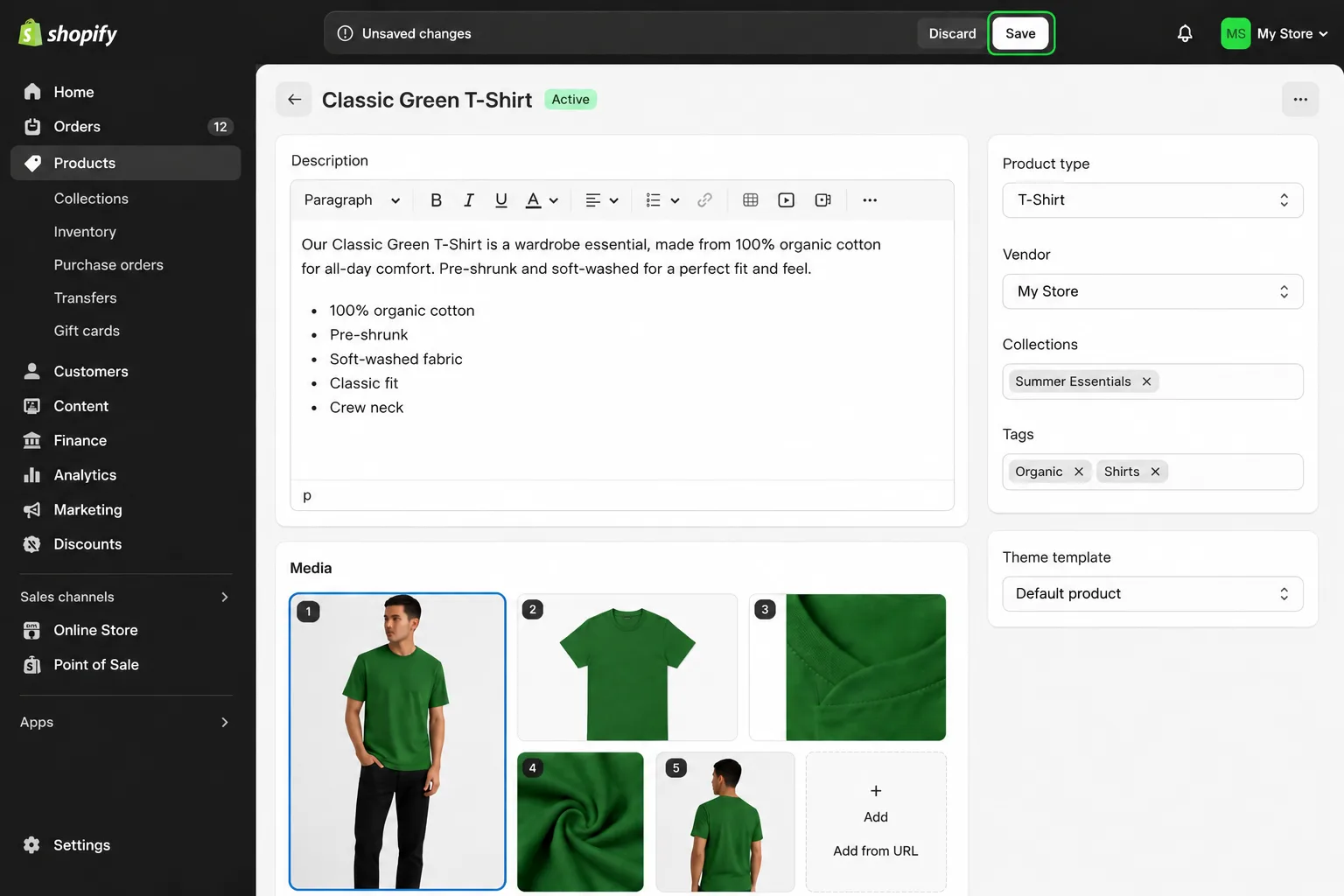
Click Save when you're done.
That's it. Shopify handles the rest, images are automatically optimised and delivered through their CDN (Content Delivery Network), so load times stay fast regardless of where your customer is browsing from.
Improve Your Image Rankings with AltMaster
What is ALT text, and why does it matter
ALT text, short for alternative text, is a brief description you attach to each image on your store. Search engines can't "see" images the way humans do, so they rely on this text to understand what an image contains and index it accordingly.
It also matters for accessibility. Screen readers used by visually impaired shoppers read out ALT text to describe images, making it a basic but important part of building an inclusive store.
According to Shopify's own research, 1 in 3 homepage images currently has missing, vague, or repetitive ALT text. That's a significant gap, and a real opportunity if your competitors are ignoring it.
How to add ALT text to Shopify images
Adding ALT text manually in Shopify takes just a few clicks. In the Media section of any product, click on an image, and you'll see a field to enter the ALT text. Keep it descriptive and specific, "blue ceramic coffee mug with handle" beats "mug" every time.
A good rule of thumb: write it as if you're describing the image to someone over the phone.
How AltMaster makes it easier
If you have a store with dozens or hundreds of products, writing ALT text one image at a time gets tedious fast. That's where AltMaster comes in. It automates the process, scanning your product images and generating SEO-relevant ALT text in bulk, saving you hours of manual work while keeping your image SEO consistent across the board.
Fill ALT text on every image, automatically
AltMaster scans your store, finds blank ALT text, and writes it from a template you control. Free for up to 50 products.
Wrapping Up
Adding images to your Shopify store is simple, but doing it well takes a bit of intention. Start with clear, well-lit photos, keep your formatting consistent, and don't skip the ALT text. These aren't advanced tactics, they're the basics that a surprising number of stores still get wrong.
Get these right, and you're already ahead of a good chunk of the competition.
FAQs
Can I add images to my Shopify store from my phone?
Yes. The Shopify mobile app lets you upload product images directly from your phone's camera roll. Go to Products, select the product, and tap the image section to add or replace photos.
How many images can I add to one Shopify product?
Shopify allows up to 250 images per product. In practice, 4 to 8 well-chosen images covering different angles and use cases are more than enough for most products.
Why does my image look blurry after uploading?
This usually comes down to file size or resolution. Shopify recommends a minimum of 800 x 800 pixels, ideally 2048 x 2048 for zoom quality. If your source image is too small, it will appear soft or pixelated once displayed.
Does the image file name matter for SEO?
It does. Rename your files before uploading, blue-ceramic-coffee-mug.jpg gives Google more context than IMG_4823.jpg. It's a small step that adds up across a full product catalogue.
Will adding more images slow down my store?
Not significantly. Shopify automatically compresses and serves images through its CDN, so your page speed stays largely unaffected. That said, avoid uploading unnecessarily large files, keep originals under 20MB.